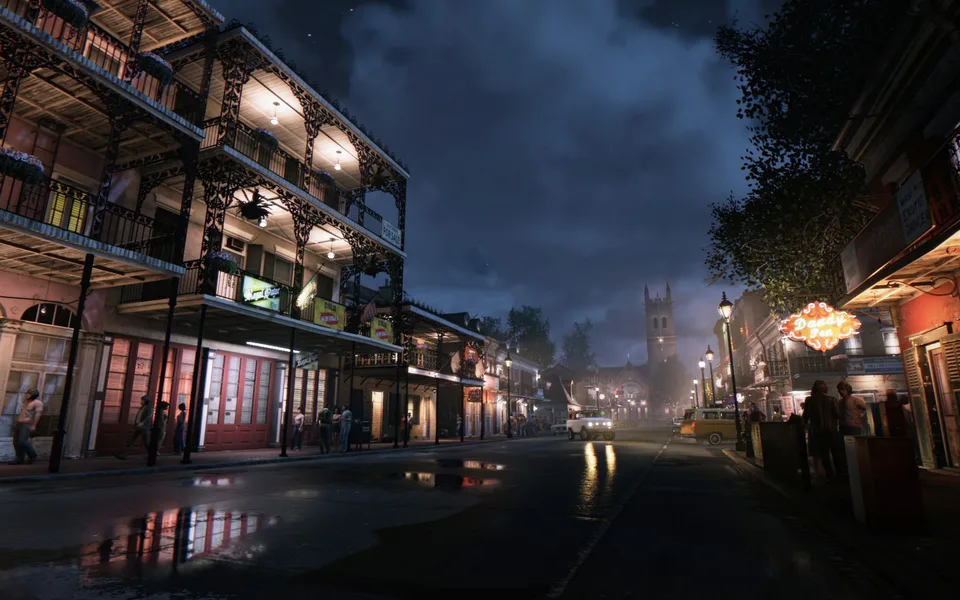
Learn how to improve your experience in Mafia III on PC with essential fixes for TAA blurring, frame rate caps, and 2K Launcher bypass methods.
Published: Mafia III Wiki Editorial Team
Table of Contents
Optimizing Visual Quality and Removing TAA Blur
Many players find the default visual presentation of Mafia III on PC to be problematic, specifically regarding the heavy implementation of Temporal Anti-Aliasing (TAA). Community reports frequently describe the image as appearing "smeared" or coated in a layer of Vaseline. While TAA is intended to smooth out jagged edges, its implementation here often results in a significant loss of texture detail and overall clarity.
To address this, many players turn to sharpening filters. While some third-party mods exist, using NVIDIA Freestyle filters (accessible via Alt+F3) is often the most stable method. By applying a "Sharpen" or "Sharpen+" filter, you can effectively counteract the blur.
How to apply: Press Alt+F3 while in-game to open the filter menu.
Recommendation: Start with a low intensity for the "Sharpen" filter. Avoid excessive texture detail settings, as these can introduce unwanted flickering or "noise" in the image.
It is important to note that while these filters improve perceived sharpness, they do not resolve the underlying aliasing issues. If you choose to use external hex-edit mods to disable TAA entirely, be aware that you may encounter significant "shimmering" or jagged edges, as the game’s engine is heavily reliant on this specific anti-aliasing method.
Bypassing the 2K Launcher for Better Stability
The inclusion of the 2K Launcher has been a frequent point of frustration for PC players. Not only does it add an extra step to the startup process, but it can also interfere with certain overlay features, such as NVIDIA’s game filters or performance monitoring tools. Bypassing this launcher is a common practice to streamline the game's execution.
To bypass the launcher:
Navigate to your local game files via Steam (Right-click the game in your Library > Manage > Browse local files).
Locate the primary executable. It is recommended to create a backup of your current .exe file before making changes.
Ensure your Steam launch options are configured correctly. In the game's properties, under the "General" tab, you can input the file path to your executable followed by %command%.
By pointing Steam directly to the game executable rather than the launcher, you often reduce load times and ensure that third-party software can hook into the game process without interference. Always ensure your path uses quotation marks to account for spaces in the directory name.
Unlocking Frame Rates and Full-Screen Performance
Mafia III is known to have a default 60 FPS cap when running in full-screen mode. For players with high-refresh-rate monitors, this can make the gameplay feel sluggish. Community feedback suggests that the 60 FPS limit is often tied to the game's full-screen optimization settings.
To attempt to lift this cap:
Right-click the game executable in your installation folder and select Properties.
Navigate to the Compatibility tab.
Check the box labeled "Disable full-screen optimizations."
Apply the changes and restart the game.
Additionally, managing your frame rate through your GPU control panel (such as the NVIDIA Control Panel or the newer NVIDIA App) is more effective than relying on in-game settings. By setting "Vertical Sync" to "On" and enabling G-Sync (if your monitor supports it), you can maintain a smooth experience that stays just below your monitor's maximum refresh rate. This prevents the screen tearing associated with uncapped frame rates while avoiding the input latency often introduced by traditional V-Sync.
Troubleshooting Common Launch Issues
If you encounter errors after modifying your game files or launch options, the most common culprit is a typo in the directory path or an incorrect reference to the executable.
Verify File Integrity: If the game fails to launch, use Steam's "Verify integrity of game files" feature to restore the original configuration.
Administrator Privileges: Occasionally, the game may require administrative rights to bypass launcher restrictions. You can toggle "Run this program as an administrator" in the same Compatibility tab mentioned earlier.
NVIDIA Profile Inspector: For advanced users, if your game filters are not appearing, ensure that "Antialiasing compatibility" flags are set to "Allowed" within the NVIDIA Profile Inspector for this specific title.
Always remember that these steps are community-sourced workarounds. Because the game is no longer receiving major updates, these manual adjustments remain the most reliable way to tailor the performance to your specific hardware setup. If you are experiencing performance dips, ensure that your drivers are up to date, as the game’s engine can be sensitive to driver-level optimizations.