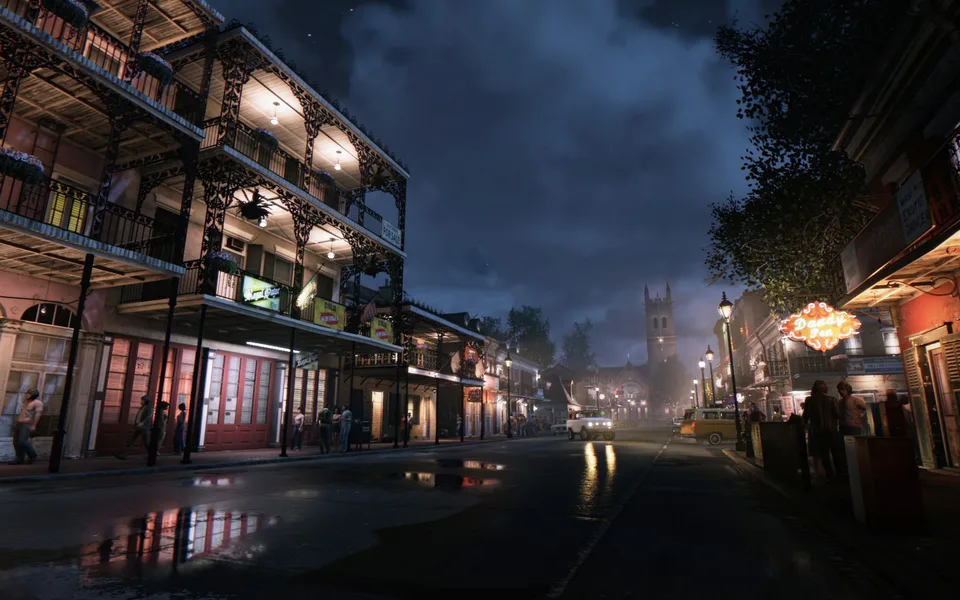
Mafia III Mods: How to Install and Top Picks for Definitive Edition
Enhance your Mafia III experience with custom mods. Learn how to safely install visual upgrades, gameplay tweaks, and character retextures on PC.
Published: Mafia III Wiki Editorial Team
Table of Contents
How to Install Mods in Mafia III
Modding Mafia III can significantly improve your experience in New Bordeaux, whether you are looking to sharpen the visuals or adjust gameplay mechanics. Most mods for this title involve a manual file replacement process. Unlike games with dedicated mod managers, Mafia III often requires you to interact directly with the game's file structure.
To install most mods, follow these general steps:
Locate Your Game Directory: Right-click the game in your library (or navigate to the installation folder), select "Manage," and choose "Browse local files."
Prepare a Backup: This is the most critical step. Create a new folder named "Backup" and copy the original files you intend to replace into it. If a mod causes graphical glitches or stability issues, you can simply restore the original files from this folder.
Extract the Mod: Use a tool like WinRAR or 7-Zip to extract the downloaded mod files.
Replace Files: Depending on the mod, you will typically need to navigate to the SDS_retail folder, and often deeper into the tables folder. Drag and drop the modded files into the corresponding directory.
Verify: Launch the game to ensure the changes are active.
Warning
Always back up your game files before applying any mod. Modifying game data carries the risk of file corruption or game instability. If you encounter crashes after installation, remove the modded files and restore the originals from your backup folder.
Recommended Mods for Your Playthrough
The community has developed a wide variety of enhancements for Mafia III. Whether you want a more cinematic look or specific gameplay adjustments, there are several reliable options available via platforms like Nexus Mods.
Visual Enhancements
Visual mods are among the most popular, aiming to modernize the game's aesthetic.
ReShade Presets: Tools like "Realism ReShade" or "Rortrix Enhance Visuals" adjust the game's color grading, contrast, and bloom. These are excellent for players who find the default color palette too dull or flat.
4K Textures: Mods such as the "4K Speedometer" replace original textures with higher-resolution versions. These retain the original artwork and positioning but remove the blurriness that can appear on higher-resolution displays.
Character Retextures: "Lincoln Clay 4K Face and Body Retexture" is a popular choice for improving character fidelity. These mods often increase texture resolution and can add details like stubble or skin tone adjustments.
Gameplay and Utility Tweaks
These mods change how the game handles or provide quality-of-life improvements.
Infinite Focus: This allows you to use slow-motion aiming indefinitely, which can be useful for players focusing on combat challenges or cinematic photography.
HUD Toggles: For players seeking a more immersive experience, HUD toggle mods allow you to hide the user interface, making the game feel more like a movie.
Save Games: If you want to start a new playthrough with specific items unlocked or a "New Game Plus" style experience, community-provided save files are highly convenient. These saves often come with everything unlocked or fresh stats, allowing you to jump straight into the action.
Community Localization and Customization
Mafia III also benefits from the community's efforts in localization and character personalization.
Language Localization: There are active projects, such as the "Bahasa Indonesia" or "Thai" localization mods, that provide translated interfaces and subtitles. These are often created using advanced language models, making the game more accessible to players in those regions.
Outfits and Cosmetics: Mods like "The Punisher Black T-Shirt" allow you to customize Lincoln Clay’s appearance. These are simple replacements that swap the default texture for a new design, adding a layer of personal style to your character.
Troubleshooting and Best Practices
When installing mods, understanding where your files go is half the battle. If you are struggling to get a mod to work, consider these points based on community reports:
Folder Structure: Many mods require you to drop files into SDS_retail/tables. If a mod doesn't specify the path, check the mod author's description or the "Posts" section on the mod page for guidance.
Compatibility: Some mods, particularly those that change the same game files, may conflict. If you are installing multiple mods, test them one by one to ensure they do not cause the game to crash.
Performance: While visual mods like ReShade generally have a minimal impact, high-resolution texture packs can consume more VRAM. If you experience stuttering, consider reverting to lower-resolution textures.
Frequently Asked Questions
Can I get banned for using mods in Mafia III?
Mafia III is primarily a single-player experience. Using mods is generally safe and will not result in a ban. However, always ensure you are downloading files from reputable community sites to avoid malicious software.
Do I need a mod manager?
While some games have dedicated managers, Mafia III modding is largely manual. You do not strictly need a mod manager, but keeping your downloaded files organized in a separate folder before moving them into the game directory is highly recommended.
Why isn't my mod working?
The most common reason for a mod failing to work is incorrect file placement. Double-check that you have placed the files in the specific folder indicated by the mod author. Additionally, ensure you have not accidentally renamed any files, as the game engine often looks for specific filenames to load assets.