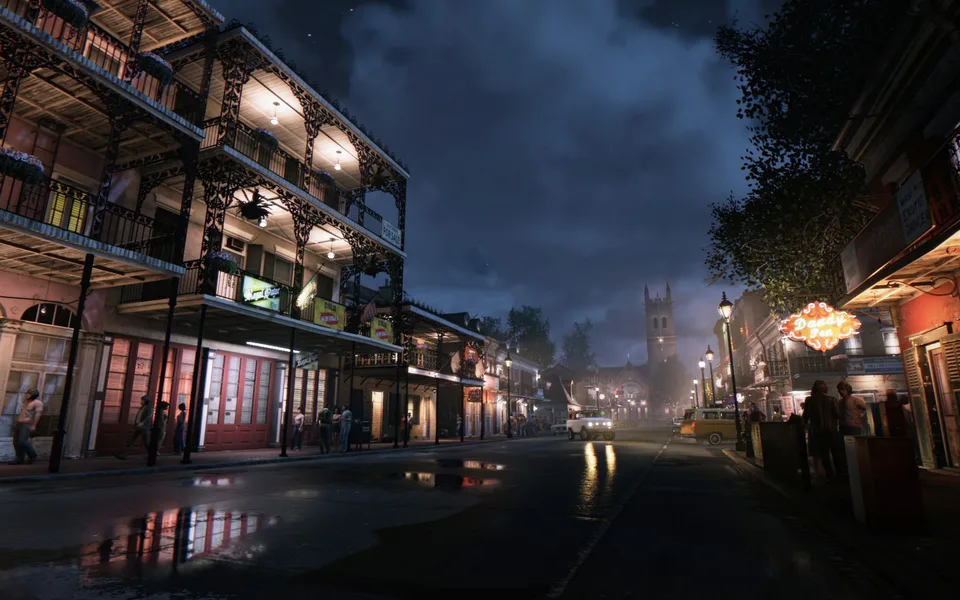
Learn how to get borderless windowed mode in Mafia III, bypass the 2K launcher, and resolve the 60fps frame rate cap for a smoother experience.
Published: Mafia III Wiki Editorial Team
Table of Contents
Understanding Display Modes in Mafia III
Many players looking for a borderless fullscreen mode in Mafia III quickly realize the game does not offer this setting natively. By default, the game is restricted to either exclusive Fullscreen or Windowed mode. Exclusive Fullscreen often enforces a strict 60fps frame rate cap, while Windowed mode displays visible borders that break immersion.
Because the game lacks an official borderless toggle in its settings menu, achieving this requires workaround methods. Community reports indicate that while simple launch options like -windowed -noborder sometimes work, they are inconsistent across different hardware setups. If these commands do not work for you, using external software is the most reliable path.
Implementing Borderless Windowed Mode
If you are struggling with the native limitations, the most common solution recommended by players is using the Borderless Gaming utility. This third-party tool forces windowed applications to run without borders, effectively mimicking fullscreen mode.
To use this method:
Set the game to Windowed mode in the in-game display settings.
Launch the Borderless Gaming application.
Move Mafia III from the left list to the right list within the tool.
This process prevents the screen from flickering or turning black when you Alt-Tab, providing a smoother experience for multi-monitor users. While this doesn't offer the exact technical implementation of a "borderless fullscreen" mode, it is widely considered the best community-validated fix for this specific title.
Bypassing the 2K Launcher and Restoring Filters
A significant issue for many PC players involves the 2K launcher, which was added to the game post-launch. This launcher can interfere with Nvidia overlays and filters, and it often creates unnecessary friction when trying to launch the game.
To bypass the launcher and fix potential compatibility issues with tools like Nvidia Freestyle (Nvidia Filters), you should point Steam to the game's core executable:
Navigate to your installation directory (right-click the game in Steam > Manage > Browse local files).
Locate Mafia III Definitive Edition.exe and create a backup copy.
Rename the original file to Mafia3.exe.
In Steam, right-click the game, go to Properties, and in the Launch Options field, enter: "C:\Path\To\Your\Game\Mafia3.exe" %command% (replace the path with your actual directory).
By bypassing the launcher, you regain control over Nvidia overlay features, allowing you to apply filters (Alt+F3) to sharpen the game's image, which many players find suffers from a heavy, Vaseline-like TAA (Temporal Anti-Aliasing) blur.
Removing the 60FPS Cap in Fullscreen
The 60fps cap in exclusive fullscreen mode is a common frustration. To remove this limit, you must first ensure that Windows is not overriding the game's display behavior:
Right-click your Mafia3.exe (the renamed file mentioned above) and select Properties.
Navigate to the Compatibility tab.
Check the box for Disable fullscreen optimizations.
Click Apply and OK.
After disabling these optimizations, ensure your GPU settings are configured to handle the refresh rate correctly. Using the Nvidia Control Panel (or the Nvidia App), set "Vertical Sync" to "On" and ensure your monitor’s G-Sync is active. Community experts suggest that pairing these settings with "Low Latency Mode: Ultra" provides a stable experience that stays just below your monitor's maximum refresh rate, preventing unnecessary input lag while maintaining a smooth, tear-free image.
Visual Tweaks: Sharpening the Image
Because the game uses an aggressive TAA implementation, the visual output can appear soft or blurry. Once you have successfully bypassed the launcher and enabled Nvidia filters, you can use the "Sharpen" or "Sharpen+" filters (Alt+F3).
[!TIP]
Avoid Over-Sharpening
Be careful with the intensity settings for sharpening filters. Applying too much sharpening can introduce undesirable artifacts, such as flickering pixels or high-frequency noise on textures. Aim for a subtle increase in intensity (usually between 20-30%) to improve clarity without making the image look "crunchy" or unnatural.
FAQ
Q: Can I use launch options instead of external software for borderless mode?
A: Some players report success with -windowed -noborder -h [height] -w [width] launch options, but results are highly inconsistent. Third-party borderless apps are more reliable.
Q: Will bypassing the 2K launcher affect my save files or achievements?
A: Generally, no. Bypassing the launcher simply skips the intermediary startup window. Steam achievements and cloud saves typically function normally as long as you are still launching the game through the Steam client.
Q: Why does my game look blurry even after changing settings?
A: The blur is largely due to the game's native TAA solution. Using Nvidia's "Sharpen" filter is currently the most effective way to address this without modding the game files, which can sometimes cause instability.