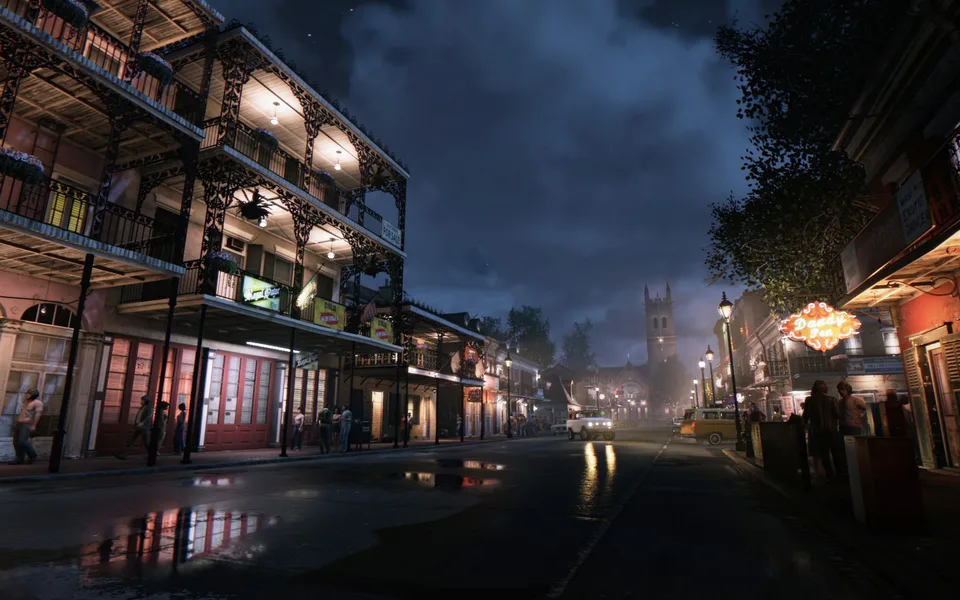
Mafia III System Requirements: PC Hardware Specs for Optimal Performance
Check the minimum and recommended system requirements for Mafia III on PC. Learn what hardware you need to run the game smoothly and optimize your settings.
Published: Mafia III Wiki Editorial Team
Table of Contents
Understanding Mafia III Hardware Requirements
If you are planning to step into the shoes of Lincoln Clay in New Bordeaux, ensuring your PC hardware meets the necessary standards is the first step toward a stable experience. Mafia III demands specific graphical and processing power to handle its open-world environment, physics, and detailed lighting effects.
Understanding these requirements helps you avoid performance bottlenecks, such as low frame rates or stuttering during intense driving sequences and shootouts. Whether you are aiming for the bare minimum to get the game running or looking to hit the recommended settings for higher fidelity, the specifications below provide the baseline for your setup.
Minimum System Requirements
To meet the baseline performance expectations, your gaming rig must satisfy the following hardware profile. These settings are designed to run the game at lower graphical presets while maintaining acceptable playability:
OS: Windows 7 (64-bit)
Processor (CPU): Intel I5-2500K or AMD FX-8120
Memory (RAM): 6 GB
Graphics Card (GPU): NVIDIA GeForce GTX 660 or AMD Radeon HD 7870
Video Memory (VRAM): 2 GB
Storage: 50 GB available space
Sound: DirectX-compliant sound card
If your machine falls below these specifications, particularly in the GPU or RAM categories, you may experience frequent crashes or significant input lag. Upgrading your RAM to at least 8 GB is often a simple fix that improves overall system stability during gameplay.
Recommended Hardware for Optimal Play
For those who want to experience the atmosphere of 1968 New Bordeaux with better visual clarity and smoother frame rates, the recommended specifications are the target. These specs ensure the game runs reliably at higher resolutions and settings:
OS: Windows 7 (64-bit)
Processor (CPU): Intel I7-3770 or AMD FX 8350 (4.0 Ghz)
By utilizing hardware that meets these recommendations, you allow the engine to handle texture streaming and environmental rendering more efficiently. If you are using a modern mid-range card that exceeds the GTX 1060, you should be able to maintain a consistent experience with ease.
How to Check Your PC Specs
Before purchasing or installing the game, it is vital to know exactly what is inside your computer. You can use the built-in Windows tools or third-party diagnostic software to verify your hardware.
Check your CPU and RAM: Right-click the "Start" button and select "System." This will display your processor model and the total amount of installed RAM.
Verify your Graphics Card: Open the "Task Manager" (Ctrl + Shift + Esc), navigate to the "Performance" tab, and select "GPU." Here, you can see your specific model and the amount of dedicated video memory available.
Storage Check: Open "File Explorer," go to "This PC," and check that your primary drive has at least 50 GB of free space.
Tip
If your hardware is close to the minimum requirements, consider closing background applications like web browsers or recording software while playing to free up system resources.
Common Performance Troubleshooting
Even when meeting the system requirements, players occasionally encounter performance issues. Based on community reports and general troubleshooting practices, consider these steps:
Update GPU Drivers: Always ensure your graphics card drivers are up to date. Manufacturers frequently release optimizations for major titles that can resolve graphical glitches.
Verify Game Files: If the game fails to launch, use the Steam client to "Verify Integrity of Game Files." This checks for corrupted files that might have occurred during installation.
Monitor Temperatures: Open-world games can be demanding. If your frame rate drops after 30 minutes of play, your CPU or GPU might be thermal throttling. Ensure your fans are clean and your case has proper airflow.
Frequently Asked Questions
Can I run the game on Linux?
The official requirements specify Windows 7 64-bit or higher. While some users may attempt to run the game via compatibility layers like Proton on Steam, official support is focused on the Windows environment.
Will the game fit on an SSD?
Yes, the game requires 50 GB of space. Installing the game on an SSD rather than an HDD is highly recommended to significantly reduce loading times and pop-in issues, which are common in open-world titles.
Do I need a specific sound card?
The requirements mention a "DirectX Compliant Sound card." In modern PCs, this is handled by your motherboard's integrated audio, so as long as your drivers are updated, you do not need a dedicated physical sound card.