Best Mafia III Graphics Mods for Enhanced Visuals in 2026
Discover the best graphics mods for Mafia III to sharpen textures, improve lighting, and breathe new life into New Bordeaux with community-tested presets.
Published: Mafia III Wiki Editorial Team
Table of Contents
Enhancing Mafia III Graphics with Community Mods
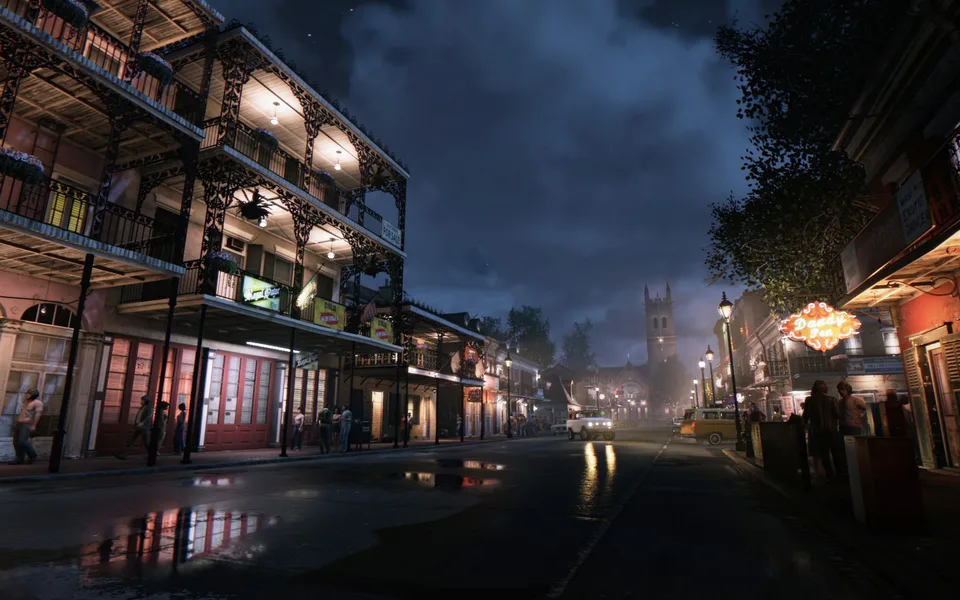
New Bordeaux is a visually striking setting, but many players find the base game’s aesthetic to be slightly washed out or overly soft. Whether you are aiming to sharpen the speedometer, improve Lincoln Clay’s character model, or fix the game's color palette, the community has developed several tools to overhaul the experience. Using mods like ReShade presets or texture packs can significantly transform the game's atmosphere without requiring a massive hardware upgrade.
When searching for the best graphics mods for Mafia III, it is crucial to focus on files compatible with the latest version available on Steam. While the game has received updates over the years, the core engine remains the same, meaning most visual mods are lightweight and easy to integrate.
Top Graphical Mods to Install
The modding community for this title has remained active through 2026. If you are looking to revitalize the game's visuals, the following modifications are currently the most popular choices based on community feedback:
Rortrix Mafia 3 Enhance Visuals: This preset is designed to move away from the game’s default "flat" look. It focuses on making colors punchier and adding a vibrant bloom effect, helping the game feel less dull during outdoor missions.
4K Speedometer: A common complaint among players is the blurry interface elements. This mod provides a true 4K version of the speedometer, maintaining the original art style while significantly increasing clarity.
Lincoln Clay 4K Face and Body Retexture: For those focusing on character models, this is a must-have. It upscales textures to 4K, darkens the skin tone for a more realistic appearance, and adds a stubble beard, making the protagonist look much sharper during cutscenes.
Why Use ReShade Presets?
ReShade is a powerful post-processing injector that allows you to change how the game renders light, shadows, and colors in real-time. Unlike texture packs that replace game files, ReShade sits on top of the rendering pipeline.
According to recent community reports, the "Realism ReShade" preset is highly regarded for those who prefer a more grounded, cinematic look rather than the default art style. Using these presets is generally safe and allows you to toggle the effects on or off using a simple hotkey. This flexibility is perfect if you want to compare the modded look with the vanilla version without exiting the game.
Installation Tips and Best Practices
Installing graphics mods for Mafia III is generally straightforward, but there are a few rules to follow to ensure your game remains stable.
Always Backup: Before replacing any files in your game directory, create a folder containing the original assets. If a mod causes flickering or crashes, you can easily revert the changes.
Check File Size and Source: Always download files from reputable sources like Nexus Mods. Community-made tools are often small—many graphical presets are under 5MB—but texture packs can reach up to 600MB. Ensure you have the necessary storage space before starting.
Load Order: If you are using multiple visual mods simultaneously, keep an eye on compatibility. For example, if you use a full-body retexture mod and a separate face texture mod, they may overwrite each other depending on the order of installation.
Troubleshooting Common Visual Issues
Sometimes, applying a mod might cause unexpected artifacts or issues. If you notice strange lighting or textures not loading correctly, try these steps:
Clear the Shader Cache: Sometimes old cache files conflict with new ReShade presets. Deleting your shader cache often resolves unexpected graphical glitches.
Verify Game Files: If a mod breaks the game's textures entirely, use the Steam client to "Verify integrity of game files." This will revert any modified core files to their original state, allowing you to start the modding process again cleanly.
Check Versioning: Always ensure that the mod description mentions compatibility with your specific game version. Community reports suggest that while some legacy mods still function, they may occasionally cause issues with HUD elements or light bloom.
Frequently Asked Questions (FAQ)
Are these graphics mods compatible with the latest game updates?
Most visual mods, particularly ReShade presets and texture upscalers, are compatible with the current version of the game. However, always check the "Last Updated" date on the mod page to see if it has been tested recently.
Will using these mods affect my Steam achievements?
Generally, visual-only mods (like textures or color correction) do not interfere with the achievement system, as they do not change the game's logic or difficulty.
How do I revert to the original visuals?
If you used a mod manager, simply deactivate the mod. If you manually replaced files, you will need to replace the modified files with your backed-up original files or use the Steam "Verify integrity" feature to force a redownload of the default assets.